Repair Remote Access
When Screen Sharing stops responding, Medevac checks it, restarts its user-level helpers, checks again and tells you what happened.
Medevac checks on the Macs you look after and gives you a way back in when Screen Sharing goes quiet. Repair remote access, restart, ping and check health from another Mac, your iPhone, iPad or iPhone Duo, at home or from anywhere with Medevac Relay. No VPN needed.
Get Medevac
Version 1.0.13 (23) Coming soon
New in Medevac for Mac 1.0.13 (23)
Macs on 1.0.8 to 1.0.13 (22) update to 1.0.13 (23) by themselves within a day, or straight away with Check for Updates. Previous version 1.0.13 (22).
The Mac app downloads directly from this site. The iPhone and iPad app comes from the App Store, and the App Store link opens once it’s released. Privacy policy
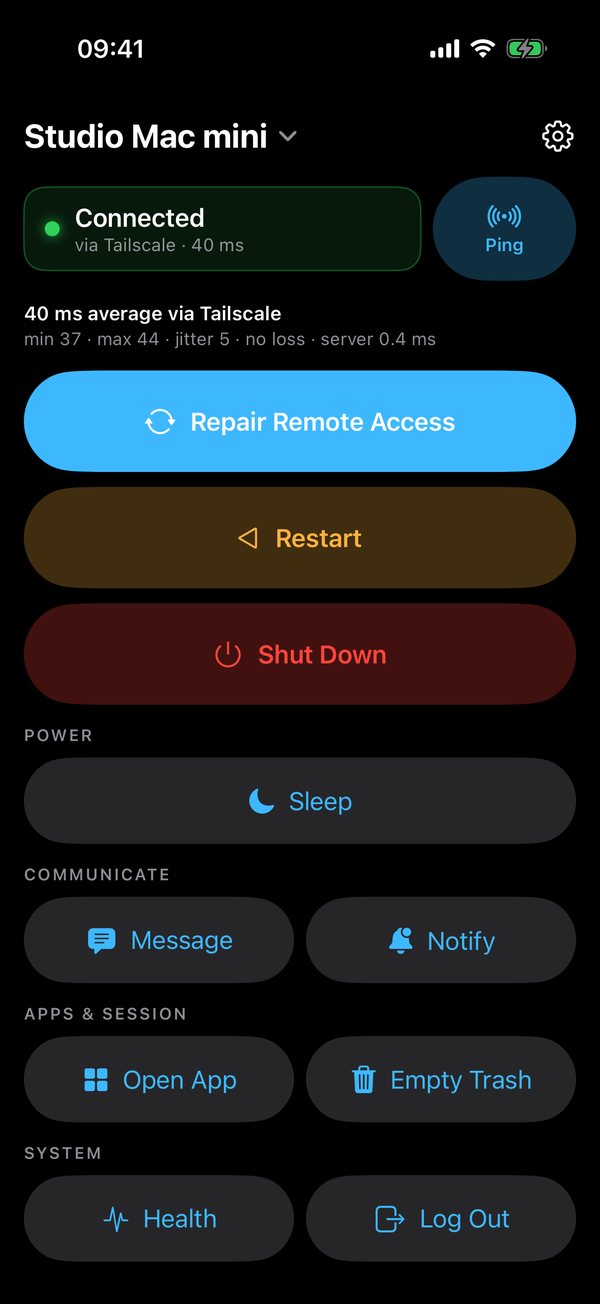
Run Medevac in Server mode on the Mac you want to look after, then reach it from another Mac, your iPhone or your iPad running in Client mode.
When Screen Sharing stops responding, Medevac checks it, restarts its user-level helpers, checks again and tells you what happened.
Restart now or in 1 or 5 minutes, shut down, log out or put the Mac to sleep. Face ID or Touch ID is required before restarting, shutting down or logging out.
Five encrypted round trips with average, minimum and maximum time, jitter and loss. When a Mac is disconnected, Ping tests each known address on its own.
Uptime, disk space, memory, power, Screen Sharing status and version numbers for the Mac you’re checking.
Macs on the same network appear automatically. Away from home, Medevac Relay reaches them from any network, or use Tailscale or another VPN. No router port forwarding.
Medevac only shows Connected after the Mac proves it knows your shared secret, then checks in every 15 seconds. Otherwise it shows Connecting or Disconnected, with the reason.
Send an alert to whoever is at the Mac and see when it’s been read, or post a notification.
Open an app from a list you approve on the server, and add several apps to that list at once. Empty Trash shows how many items are in it before you confirm.
Your list of Macs syncs across your devices through your own iCloud account. A Mac in Server mode can show itself on your other devices.
Medevac 1.0.7 adds a view-only Screen Preview of the Mac you look after, and a warning with one-tap repair when remote access stops working. They’re in the Mac download now, and arrive on iPhone when 1.0.7 is on the App Store.
See the server Mac’s main screen under the action tiles, on iPhone or on a Mac in Client mode. It’s view only, so nothing is clicked or typed on the Mac.
On iPhone, tap the preview for full screen in landscape, then pinch or double-tap to zoom. On Mac, click it to open a window you can resize or make full screen.
Medevac checks when it connects and every minute after. If Screen Sharing isn’t answering, it says so and offers Repair Now, which runs Repair Remote Access.
On the server Mac, click Finish setup to go straight to the sign-in settings, click an address under “Reach this Mac at” to copy it, and choose to start with the window hidden so the server runs from the menu bar.
The Mac desktop in these screenshots is a sample from the app’s demo mode. Screen Preview needs a one-time Screen & System Audio Recording permission on the server Mac; see Help.
Medevac runs natively on iPhone Duo and uses both screens. Half-folded, the remote Mac’s screen is on one side and everything from the Home page is on the other. Open it flat and the remote screen fills the whole inner display.
The remote desktop sits on one side of the fold, with Repair Remote Access, Restart, Ping, Insight and the rest of the Home page actions on the other, so you can watch the Mac while you work on it.
Open it flat and the remote desktop takes over the large inner display, giving you far more of the Mac’s screen than a phone can show.
Closed, Medevac works on the outer screen just as it does on iPhone, with every action and your list of Macs.
Medevac 1.0.13 runs natively on iPad with a full-screen layout of its own. The Mac you’re checking fills the top of the screen, every saved Mac sits in a row of live tiles underneath, and every action is in reach below. The iPad app is the same download as the iPhone app on the App Store.
See the server Mac’s screen across the top of the iPad, then tap to control it or expand it to full screen.
Each saved Mac has its own preview tile, labelled with its name and a green or red dot for online or offline. Tap one to switch to it.
Control, Repair, Insights, Restart and Force Quit, plus Sleep, Message, Notify, Open App, Empty Trash, Shut Down and Log Out, all on one screen.
Shown with demo data.

Menu bar · Appearance
On Mac, Medevac lives in the menu bar as a small power symbol with a heartbeat line  . It follows your light or dark menu bar, and a dot in its corner shows the status.
Security
You sign in to each Mac once with its username and password. After that, your device reconnects with its own key. Every command is encrypted between your devices, on your home network, over your own VPN, or through Medevac Relay, which passes along the encrypted session without being able to read it.
These are planned and aren’t in the app yet.
Download version 1.0.13 for Mac from this site, or get the iPhone and iPad app on the App Store.